
October 1, 2013 11:53 by
 Ben
BenThis article demonstrates how to use Dotfuscator which is shipped freely with Visual Studio 2010 to protect. If you are using this tool for the first time, you will be presented with a License agreement. After accepting the license agreement, you can also register this product to get access to free updates and online support.
On the Dotfuscator UI, right click on the project and click ‘Add Assemblies’ and add an assembly of the project you have created
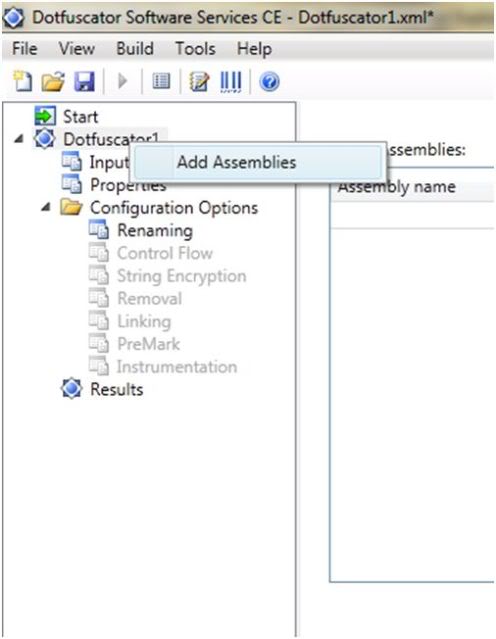
Note: If you observe, options like Control Flow, String Encryption, Removal, Linking and PreMark are grayed out. That is because they are available in the Professional edition. The Instrumentation option is available but you have to manually enable it.
Once the assembly is selected, hit ‘Ctrl + B’ or go to Build > Build Project
Click on the Results tab and expand the root tree and the sub-trees. The blue diamond shaped icons indicates that they are renamed methods and field
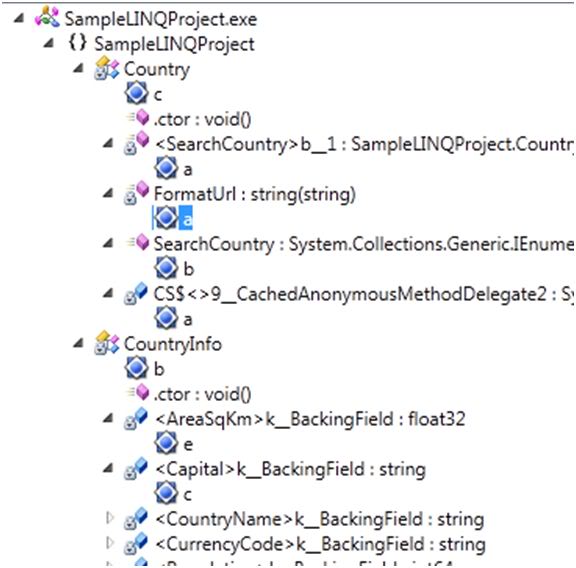
Once the obfuscation process is completed, you can examine the obfuscated assembly using ILDASM. ILDASM is a disassembler utility which comes with the .NET Framework SDK and allows you to decompile .NET assemblies into IL Assembly Language statements. To start ILDASM, go to Visual Studio Command Prompt and type ildasm. Then select the assembly to browse. Here’s a comparison of the same assembly, before obfuscation and after obfuscation
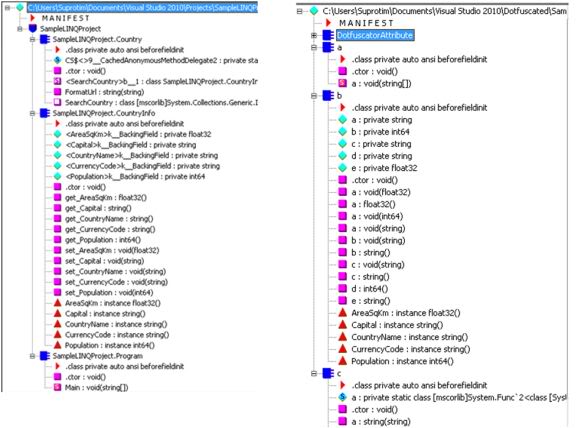
Observe how the method and property names are obfuscated. The obfuscated version makes it difficult to understand what a method or property is doing. You can even open a method to view the IL code. Here’s a comparison of the IL before and after the obfuscation:

As you can observe, Dotfuscator renamed the methods and properties and made it difficult to find out the purpose of each method using a disassembler. You can also explore the different Configuration Options to control the renaming of members or to exclude members you do not want to obfuscate.
I hope this article was useful and I thank you for viewing it.
24d69f2e-44af-4f0a-8df5-efc7362da987|0|.0
September 18, 2013 11:08 by
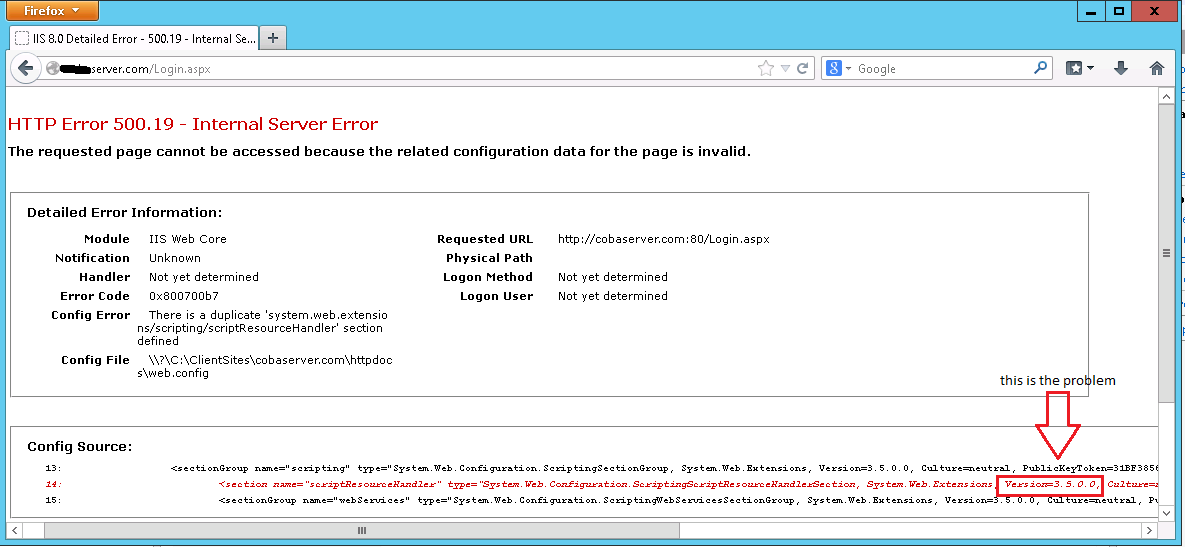
Benhave you ever come across this error when you try to run your website from localhost??

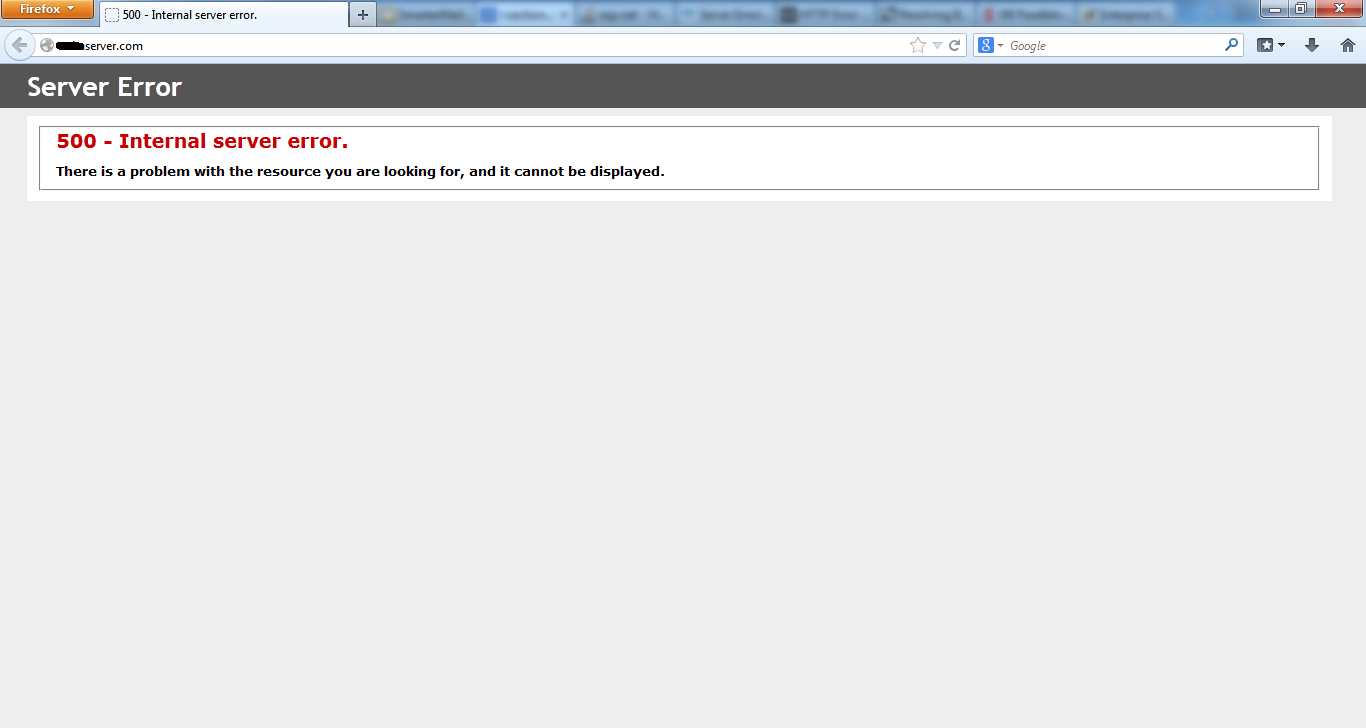
and when I looking for the real problem in production server, I understand that version. NET Framework that I use is 4.0. for that I need to replace the actual version .NET Framework version 2.0.
Here is a short step to change. NET version:
1. Open your IIS ( for this article i use IIS 8)
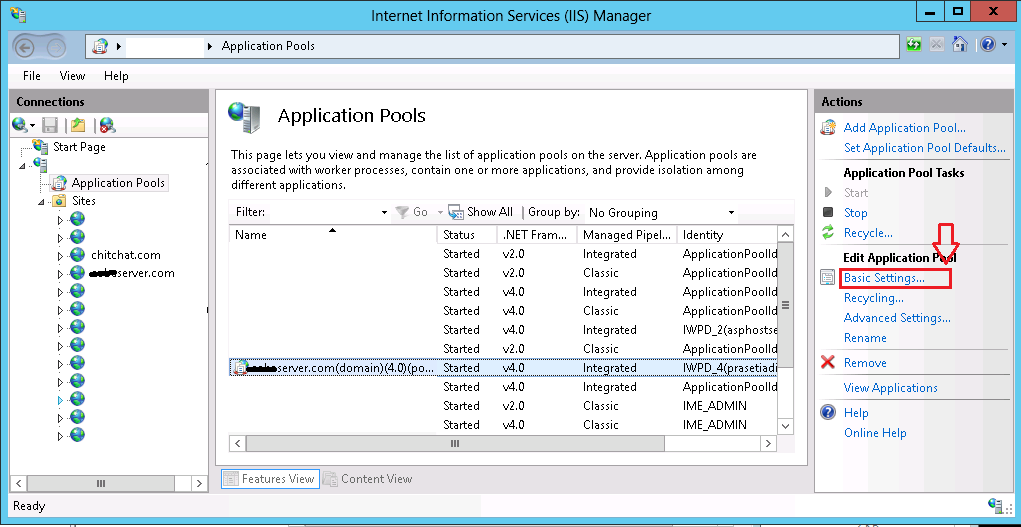
2. Click your Application Pool (Before that, make sure your dedicated pool was tick on your server) and search your domain name.
You'll find that your .NET Framework version is 4.0. (this version is default by plesk control panel 11)
3. Click Basic Setting.
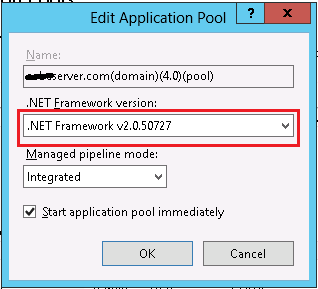
4. then change .NET Framework version to 2.0 - Ok
5. Yeah.. now you can reload your web browser and check your website.
6ebf5fbd-56c0-4c47-ae05-5e80056135d5|0|.0