All About ASP.NET and ASP.NET Core 2 Hosting BLOG

Tutorial and Articles about ASP.NET and the latest ASP.NET Core

ASP.NET Hosting - ASPHostPortal.com :: How to solve can’t see the .mdf file in the App_data folder?

clock August 31, 2015 06:07 by author Dan

For those who’re following the ASP.NET Movies tutorial from Microsoft and you get to the stage where you are supposed to look at the Movies.mdf data file, you may encounter some problems. There are quite a few, and these issues aren’t unique to the movies sample and can happen to anyone trying to create projects in this way. Here are a list of problems and solutions.

Problem: The database ‘…MVCMOVIE\MVCMOVIE\APP_DATA\MOVIES.MDF’ cannot be opened because it is version 706. This server supports version 655 and earlier. A downgrade path is not supported.

Solution: [It’s likely you’re running Visual Studio Web Developer or VS2010]

  1. You need to install the SQL Server Data Tools and LocalDB.
  2. Verify the MovieDBContext connection string specified on the previous page of the tutorial.

Problem: “InvalidOperation Exception was unhandled by user code” The supplied SqlConnection does not specify an initial catalog.

Solution: [It’s likely you’re running Visual Studio Web Developer or VS2010]

  1. You need to install the SQL Server Data Tools and LocalDB.
  2. Verify the MovieDBContext connection string specified on the previous page of the tutorial. Or
  3. You might get away with just adding “Initial Catalog=Movies;” into the connection string.

Problem: The App_Data folder in the solution explorer didn’t contain the .mdf file

Solution:

  1. In the Solution Explorer, click ‘show all files’.
  2. Then click the refresh button.
  3. Then expand the App_Data folder

Problem: The App_Data folder still doesn’t show anything.

Solution:

  1. F5 (Debug) the solution.
  2. Navigate to <location>/Movies in IE- this step populates the database. You could also try using update-database in nuget package manager console.
  3. Go back to visual studio and refresh the App_Data folder.

– This solution applies to other projects, if your .mdf isn’t there or the tables aren’t there, just try navigating to the main DbSet controller class first. This is because the migrations to code first changes are lazily applied. You can write some code in your startup that ensures all pending migrations are added to the database before any other code is run, which is generally handy anyway. I’ll be covering this in another blog post soon.

Best ASP.NET 4.6 Hosting Recommendation

ASPHostPortal.com provides its customers with Plesk Panel, one of the most popular and stable control panels for Windows hosting, as free. You could also see the latest .NET framework, a crazy amount of functionality as well as Large disk space, bandwidth, MSSQL databases and more. All those give people the convenience to build up a powerful site in Windows server. ASPHostPortal.com offers ASP.NET MVC hosting starts from $1/month only. They also guarantees 30 days money back and guarantee 99.9% uptime. If you need a reliable affordable ASP.NET Hosting, ASPHostPortal.com should be your best choice.


ASP.NET MVC 6 Hosting - ASPHostPortal :: Remote Validation in ASP.NET MVC

clock August 24, 2015 08:07 by author Kenny

Remote Validation in ASP.NET MVC

ASP.NET is an open-source server-side Web application framework designed for Web development to produce dynamic Web pages. It was developed by Microsoft to allow programmers to build dynamic web sites, web applications and web services. ASP.NET MVC gives you a powerful, patterns-based way to build dynamic websites that enables a clean separation of concerns and that gives you full control over markup. Remote validation is used to make server calls to validate data without posting the entire form to the server when server side validation is preferable to client side.  It's all done set up model and controller which is pretty neat. 

Using the Code

To implement remote validation in an application we have two scenarios, one is without an additional parameter and the other is with an additional parameter. First we create an example without an additional parameter. In this example we check whether a username exists or not. If the username exists then that means the input user name is not valid. We create a view model class "UserViewModel" under the Models folder and that code is:

using System.Web.Mvc;  
namespace RemoteValidation.Models   
{  
    public class UserViewModel   
    {  
        public string UserName   
        {  
            get;  
            set;  
        }  
        public string Email   
        {  
            get;  
            set;  
        }  
    }  
}


Now we create a static data source, in other words we create a static list of UserViewModel in which we could check whether a username exists or not. You can also use the database rather than a static list. The following code snippet is for StaticData.

using RemoteValidation.Models;  
using System.Collections.Generic;  
 
namespace RemoteValidation.Code   
{  
    public static class StaticData   
    {  
        public static List < UserViewModel > UserList   
        {  
            get {  
                return new List < UserViewModel >   
                {  
                    new UserViewModel   
                    {  
                        UserName = "User1", Email = "[email protected]"  
                    },  
                    new UserViewModel   
                    {  
                        UserName = "User2", Email = "[email protected]"  
                    }  
                }  
            }  
        }  
    }  


Now we create a controller "ValidationController" in which we create an action method to check whether a user name exists or not and return a result as a JSON format. If the username exists then it returns false so that the validation is implemented on the input field. The following code snippet shows ValidationController under the Controllers folder.

using RemoteValidation.Code;  
using System.Linq;  
using System.Web.Mvc;  
 
namespace RemoteValidation.Controllers   
{  
    public class ValidationController: Controller   
    {  
        [HttpGet]  
        public JsonResult IsUserNameExist(string userName)   
        {  
            bool isExist = StaticData.UserList.Where(u = > u.UserName.ToLowerInvariant().Equals(userName.ToLower())).FirstOrDefault() != null;  
            return Json(!isExist, JsonRequestBehavior.AllowGet);  
        }  
    }  
}


Now we add remote validation on the UserName of the UserViewModel property as in the following code snippet.

using System.Web.Mvc;  
 
namespace RemoteValidation.Models   
{  
    public class UserViewModel   
    {  
        [Remote("IsUserNameExist", "Validation", ErrorMessage = "User name already exist")]  
        public string UserName   
        {  
            get;  
            set;  
        }  
        public string Email   
        {  
            get;  
            set;  
        }  
    }  


As in the preceding code snippet, the IsUserNameExist is a method of ValidationController that is called on the blur of an input field using a GET request. Now we create UserController under the Controllers folder to render a view on the UI.

using RemoteValidation.Models;  
using System.Web.Mvc;  
 
namespace RemoteValidation.Controllers   
{  
    public class UserController: Controller   
    {  
        [HttpGet]  
        public ActionResult AddUser()   
        {  
            UserViewModel model = new UserViewModel();  
            return View(model);  
        }  
    }  

Now we add jquery.validate.js and jquery.validate.unobtrusive.js to the project and create a bundle as in the following code snippet.

using System.Web.Optimization;  
 
namespace RemoteValidation.App_Start   
{  
    public class BundleConfig   
    {  
        public static void RegisterBundles(BundleCollection bundles)   
        {  
            bundles.Add(new StyleBundle("~/Content/css").Include(  
                "~/Content/css/bootstrap.css",  
                "~/Content/css/font-awesome.css",  
                "~/Content/css/site.css"));  
 
            bundles.Add(new ScriptBundle("~/bundles/jquery").Include(  
                "~/Scripts/jquery-{version}.js"));  
 
            bundles.Add(new ScriptBundle("~/bundles/jqueryval").Include(  
                "~/Scripts/jquery.validate*"));  
        }  
    }  

Thereafter we add the following keys in the web.config file.

<add key="ClientValidationEnabled" value="true" />   
<add key="UnobtrusiveJavaScriptEnabled" value="true" />  


Thereafter we create a view for the AddUser action method. The following code snippet is for the AddUser view.

@model RemoteValidation.Models.UserViewModel  
 
< div class = "panel panel-primary" > < div class = "panel-heading panel-head" > Add User < /div>    
    <div class="panel-body">    
        @using (Html.BeginForm())    
        {    
            <div class="form-horizontal">    
                <div class="form-group">    
                    @Html.LabelFor(model => model.UserName, new { @class = "col-lg-2 control-label" })    
                    <div class="col-lg-9">    
                        @Html.TextBoxFor(model => model.UserName, new { @class = "form-control" })    
                        @Html.ValidationMessageFor(model => model.UserName)    
                    </div > < /div>    
                <div class="form-group">    
                    @Html.LabelFor(model => model.Email, new { @class = "col-lg-2 control-label" })    
                    <div class="col-lg-9">    
                        @Html.TextBoxFor(model => model.Email, new { @class = "form-control" })    
                        @Html.ValidationMessageFor(model => model.Email)    
                    </div > < /div>                    
                <div class="form-group">    
                    <div class="col-lg-9"></div > < div class = "col-lg-3" > < button class = "btn btn-success"  
                     id = "btnSubmit"  
                     type = "submit" > Submit < /button>    
                    </div >
               < /div>    
            </div >  
} < /div>    
</div >   
@section scripts   
{  
    @Scripts.Render("~/bundles/jqueryval")  

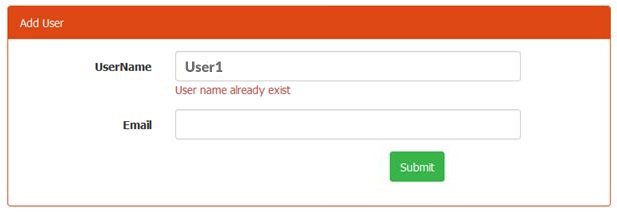
Let's run the application and put values into the user name field to execute the remote validation as in the following image.

Figure 1: Remote validation on user name

Now we move to another option, we pass an additional parameter in the remote validation. We pass both the user name and email as a parameter and check whether the username and email combination exist or not on the email input. That's why we add one more method in ValidationController as in the following code snippet for it.

[HttpGet]  
public JsonResult IsUserExist(string email, string userName)   
{  
    bool isExist = StaticData.UserList.Where(u = > u.UserName.ToLowerInvariant().Equals(userName.ToLower()) && u.Email.ToLowerInvariant().Equals(email.ToLower())).FirstOrDefault() != null;  
    return Json(!isExist, JsonRequestBehavior.AllowGet);  

Now we call this method on the Email property of UserViewModel as in the following code snippet.

using System.Web.Mvc;  
 
namespace RemoteValidation.Models   
{  
    public class UserViewModel   
    {  
        [Remote("IsUserNameExist", "Validation", ErrorMessage = "User name already exist")]  
        public string UserName   
        {  
            get;  
            set;  
        }  
        [Remote("IsUserExist", "Validation", ErrorMessage = "User already exist", AdditionalFields = "UserName")]  
        public string Email   
        {  
            get;  
            set;  
        }  
    }  
}

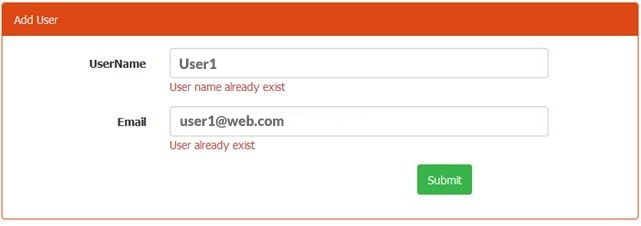
As in the preceding code snippet, we are passing an additional field using AdditionalFields in Remote. If we must pass more than one parameter then these will be comma-separated. Now run the application and the result will be as shown in the following image.  


ASP.NET Hosting - ASPHostPortal.com :: Remote Web Access Unexpected Error

clock July 13, 2015 06:14 by author Dan

We occasionally come across scenarios where memory consumption on an SBS Server increases and this may cause the server to run slow.
Additionally, some of the services/features may stop working correctly.

You may find that trying to connect to computers or accessing shares from within RWA may fail with an error message similar to the one below:

Another symptom might be that you try clicking on a gadget in RWA and nothing happens.

If you check the event logs, you will find this warning:

Log Name: Application
Source: ASP.NET 4.0.30319.0
Date: 9/17/2013 15:31:28
Event ID: 1309
Task Category: Web Event
Level: Warning
Keywords: Classic
User: N/A
Computer: SBS.Contoso.local
Description:
Event code: 3005
Event message: An unhandled exception has occurred.
Event time: 9/17/2013 15:31:28 Event time (UTC): 9/17/2013 13:31:28 Event ID: 401c8120945a4115abb39de75d347aba
Event sequence: 5
Event occurrence: 1
Event detail code: 0

Application information:

    Application domain: /LM/W3SVC/1/ROOT/Remote-1-130099878420126008
    Trust level: Full
    Application Virtual Path: /Remote
    Application Path: C:\Program Files\Windows Small Business Server\Bin\WebApp\RemoteAccess\
    Machine name: SBS

Process information:

    Process ID: 5100
    Process name: w3wp.exe
    Account name: NT AUTHORITY\NETWORK SERVICE

Exception information:

    Exception type: InsufficientMemoryException
    Exception message: Memory gates checking failed because the free memory (369917952 bytes) is less than 5% of total memory. As a result, the service will not be available for incoming requests. To resolve this, either reduce the load on the machine or adjust the value of minFreeMemoryPercentageToActivateService on the serviceHostingEnvironment config element.
   at System.ServiceModel.Activation.ServiceMemoryGates.Check(Int32 minFreeMemoryPercentage, Boolean throwOnLowMemory, UInt64& availableMemoryBytes)
  at System.ServiceModel.ServiceHostingEnvironment.HostingManager.CheckMemoryCloseIdleServices(EventTraceActivity eventTraceActivity)
 at System.ServiceModel.ServiceHostingEnvironment.HostingManager.EnsureServiceAvailable(String normalizedVirtualPath, EventTraceActivity eventTraceActivity)


There could be multiple contributors to the above problem. If you have applied .NET Framework 4.5.1 recently, you can work around this issue by modifying the Remote Web Access web.config file using the following steps:

  • Open web.config file located at: “%ProgramFiles%\Windows Small Business Server\Bin\WebApp\RemoteAccess”.
  • Search in Web.config for "<serviceHostingEnvironment aspNetCompatibilityEnabled="true" />", change this line to "<serviceHostingEnvironment aspNetCompatibilityEnabled="true" minFreeMemoryPercentageToActivateService="0"/>"
  • Save changes and close the file.
  • Run IISRESET from an elevated Command Prompt window


You should not uninstall any versions of the .NET Framework that are installed on your computer, because an application in use may depend on a specific version of the .NET Framework. For more information, see The .NET Framework for Users in the Getting Started guide.

Note: If you don't have .NET Framework 4.5.1 installed and are still running in the issue described above, you may need to analyze the memory usage of different processes running on the server and fine tune them. In such a scenario, normal performance troubleshooting steps apply. Capturing a Performance Monitor log and comparing it with baseline performance throughput should be the right way to move forward.

Best ASP.NET Hosting Recommendation

ASPHostPortal.com provides its customers with Plesk Panel, one of the most popular and stable control panels for Windows hosting, as free. You could also see the latest .NET framework, a crazy amount of functionality as well as Large disk space, bandwidth, MSSQL databases and more. All those give people the convenience to build up a powerful site in Windows server. ASPHostPortal.com offers ASP.NET MVC hosting starts from $1/month only. They also guarantees 30 days money back and guarantee 99.9% uptime. If you need a reliable affordable ASP.NET Hosting, ASPHostPortal.com should be your best choice.


ASP.NET Hosting - ASPHostPortal.com :: Solving error while posting data from ASP.Net 4.5 to ASP.Net 2.0

clock June 26, 2015 12:48 by author Dan

We caught up in the following scenario:

    We have a web application which runs on .Net 2.0 framework.
    Customer has a web application which runs on .Net 4.5 framework.

When they are posting data from one of their page to our pages, we are getting system errors. To validate the issue I have deployed two web applications on same server and tried to post a form from webapp 1 (on 4.5) to webapp 2 (on 2.0). I am getting below error.

[ViewStateException: Invalid viewstate.
Client IP: 127.0.0.1
Port: 63153
User-Agent: Mozilla/5.0 (compatible; MSIE 9.0; Windows NT 6.1; WOW64; Trident/5.0)
ViewState: /wEPDwUKLTM1MTA1NjA1MmRk6CPd6yG4r8HEbqBZi3i4jiLLnZotIlX7+6zAZaceaGY=
Referer: http://localhost/test4/default.aspx
Path: /test2/default.aspx]

[HttpException (0x80004005): Validation of viewstate MAC failed. If this application is hosted by a Web Farm or cluster, ensure that <machineKey> configuration specifies the same validationKey and validation algorithm. AutoGenerate cannot be used in a cluster.]
System.Web.UI.ViewStateException.ThrowError(Exception inner, String persistedState, String errorPageMessage, Boolean macValidationError) +148
System.Web.UI.ObjectStateFormatter.Deserialize(String inputString) +11065601
System.Web.UI.Util.DeserializeWithAssert(IStateFormatter formatter, String serializedState) +59
System.Web.UI.HiddenFieldPageStatePersister.Load() +11065704
System.Web.UI.Page.LoadPageStateFromPersistenceMedium() +11150648
System.Web.UI.Page.LoadAllState() +46
System.Web.UI.Page.ProcessRequestMain(Boolean includeStagesBeforeAsyncPoint, Boolean includeStagesAfterAsyncPoint) +11146167
System.Web.UI.Page.ProcessRequest(Boolean includeStagesBeforeAsyncPoint, Boolean includeStagesAfterAsyncPoint) +11145706
System.Web.UI.Page.ProcessRequest() +91
System.Web.UI.Page.ProcessRequest(HttpContext context) +240
ASP.default_aspx.ProcessRequest(HttpContext context) in     c:\Windows\Microsoft.NET\Framework64\v2.0.50727\Temporary ASP.NET     Files\test2\b4717a74\d7ba8639\App_Web_ha1suqrp.0.cs:0
System.Web.CallHandlerExecutionStep.System.Web.HttpApplication.IExecutionStep.Execute() +599
System.Web.HttpApplication.ExecuteStep(IExecutionStep step, Boolean& completedSynchronously) +171


I tried the following:

    EnableViewState = false in Page tag. But still .Net is adding a _VIEWSTATE hidden variable.

   Added a Javascript function to set _VIEWSTATE hidden variable to empty. This resolved the issue.

Though second work solutions resolved the problem, I am looking for better ways to solve this kind of issue.
Best Answer

EnableViewState = false only turns off the ViewState, but not the control state of the ASP.NET server controls, that's why you still have the hidden VIEWSTATE control.

The ViewState is hash coded on the server, therefore you should use the same key's to generate the hash. You set the <machinekey> in your machine.config file to the same value on both applications/servers. The default value is AutoGenerate, which means that every server has it's own machinekey. You find more information here

As an alternative you turn the hashing off by setting EnableViewstateMac to false (basically what your error message says). By doing this users could manipulate your ViewState.

Best ASP.NET Hosting Recommendation

ASPHostPortal.com provides its customers with Plesk Panel, one of the most popular and stable control panels for Windows hosting, as free. You could also see the latest .NET framework, a crazy amount of functionality as well as Large disk space, bandwidth, MSSQL databases and more. All those give people the convenience to build up a powerful site in Windows server. ASPHostPortal.com offers ASP.NET MVC hosting starts from $1/month only. They also guarantees 30 days money back and guarantee 99.9% uptime. If you need a reliable affordable ASP.NET Hosting, ASPHostPortal.com should be your best choice.


ASP.Net Hosting - ASPHostPortal.com :: Solving Time View Errors in ASP.NET MVC

clock June 4, 2015 06:40 by author Dan

One of the best things about using a compiled language over a scripting language is that you get compile-time checks that prevent run-time errors later. ASP.NET MVC uses a hybrid approach by default. Views are compiled at run-time, but controllers, models, and other classes are pre-compiled. MVC also allows you to create strongly-typed views, but since those views aren’t compiled until run-time, you don’t always get warned about changes to your models (like property name changes) or other errors in your view until it’s running.

There’s a simple way to change this, though, by setting the views to build at compile time. Unfortunately this setting isn’t exposed in the Project Properties page in Visual Studio, but can still set it up manually. Here’s how:

    >> Right-click on your project file in Visual Studio’s Solution Explorer and choose Unload Project.
    >> Right-click the project file again and choose Edit YourProject.csproj.
    >> Look for a node called <MvcBuildViews> in the first <PropertyGroup> node (the one without any other attributes). If it’s not there, add it.
    >> Add or update the value inside the <MvcBuildViews> node to true. When you’re done it should look like this:

    <MvcBuildViews>true</MvcBuildViews>

    >> Save the project file changes.
    >> Right-click the project file in Solution Explorer one last time and select Reload Project.

Your views will now be built at compile -time and you will get syntax errors from any mistakes in your Razor syntax or breaking changes to your model, and you’ll get them long before your code makes it in front of users.

Keep in mind that, though, if you like to edit your .cshtml files while you’re running the debugger, these changes will no longer show up in the browser until you recompile the application again. I guess you can’t have it all!

Best ASP.NET Hosting Recommendation

ASPHostPortal.com provides its customers with Plesk Panel, one of the most popular and stable control panels for Windows hosting, as free. You could also see the latest .NET framework, a crazy amount of functionality as well as Large disk space, bandwidth, MSSQL databases and more. All those give people the convenience to build up a powerful site in Windows server. ASPHostPortal.com offers ASP.NET MVC hosting starts from $1/month only. They also guarantees 30 days money back and guarantee 99.9% uptime. If you need a reliable affordable ASP.NET Hosting, ASPHostPortal.com should be your best choice.


FREE ASP.NET Hosting with ASPHostPortal.com :: How to Fix ASP.NET 4.0 has not been Registered on the Web Server Error

clock May 6, 2015 06:54 by author Dan

When making an ASP.NET website throughout IIS 7 in Visual Studio 2008/2010, you can find the following issue:

“ASP.NET 4.0 has not been registered on the Web server. You need to manually configure your Web server for ASP.NET 4.0 in order for your site to run correctly, Press F1 for more details”

This error usually occurs if you have installed IIS 7.x ‘after’ installing .NET. In order to resolve the error, do the following:

Step 1: Open Control Panel > Programs > Turn Windows Features on or off > Internet Information Services > World Wide Web Services > Application development Feature

Check the box 'ASP.NET' . Also in the Web Management Tools, remember to select IIS 6 Management Compatibility and IIS Metabase as shown below.

Note: Make sure that you are running Visual Studio 2010 as Administrator.

Now run the site from Visual Studio 2010 using Ctrl + F5.

Step 2: If you further get the error “Handler "PageHandlerFactory-Integrated" has a bad module "ManagedPipelineHandler" in its module list” or Managed handler is used; however, ASP.NET is not installed or is not installed completely then do a Visual Studio 2010 repair.

Start > Programs > Accessories > Run. Type this command depending on the version of VS 2010 installed.

Silent Repair for 32-bit

%windir%\Microsoft.NET\Framework\v4.0.30319\SetupCache\Client\setup.exe /repair /x86 /x64 /ia64 /parameterfolder Client /q /norestart


Silent Repair for 64-bit

%windir%\Microsoft.NET\Framework64\v4.0.30319\SetupCache\Client\setup.exe /repair /x86 /x64 /ia64 /parameterfolder Client /q /norestart

That’s it. Restart IIS and the errors should be fixed.

Step 3: If the errors are not yet fixed, there could be an issue in the Application Pool. Follow these steps

1. Open IIS Manager (Run > Inetmgr) . Expand the server node and then click Application Pools

2. Now select the application pool that contains the application that you want to change. Go to Actions > View Applications.

3. Select the Application pool to change > In Action Pane, click on ‘Change Application Pool’

4. In the ‘Select Application Pool’ dialog box, select the application pool associated with .NET 4.0 from the Application pool list and then click OK.

Best ASP.NET Hosting Recommendation

ASPHostPortal.com provides its customers with Plesk Panel, one of the most popular and stable control panels for Windows hosting, as free. You could also see the latest .NET framework, a crazy amount of functionality as well as Large disk space, bandwidth, MSSQL databases and more. All those give people the convenience to build up a powerful site in Windows server. ASPHostPortal.com offers ASP.NET hosting starts from $1/month only. They also guarantees 30 days money back and guarantee 99.9% uptime. If you need a reliable affordable ASP.NET Hosting, ASPHostPortal.com should be your best choice.


ASP.NET Hosting - ASPHostPortal.com :: Sending an email using exchange server from the ASP.NET Application

clock February 2, 2015 07:27 by author Dan

The .NET Framework 1.x had a System.web.mail class to send an email from the ASP.NET system. While this namespace and these classes still exist in the .NET Framework form 2.0 and later, they have been expostulated and supplanted by the new Mail API in the System.net.mail namespace in the Asp.net 2.0 structure. Asp.net 1.x's System.web.mail API was focused around CDO libraries. With the new Apis, Microsoft moved far from CDONTS based wrapper Apis and composed the new API utilizing Com+ segments to enhance the execution.

ASP.NET 2.0 sends an email utilizing Smtpclient class. In the most fundamental arrangement, You need to set the hostname of the hand-off server in the event that you are utilizing trade server or localhost in the event that you are utilizing neighborhood SMTP administration, port (25 as a matter of course), authentican certifications, or pointed out pickup index through the Deliverymethod property.

Here is the template for the System.NET.Mail configuration.

<configuration>
<!– Add the email settings to the element –>
<system.net>
<mailSettings>
<smtp deliveryMethod=”PickupDirectory” from=”fromemailaddress”>
<network
host=”relayServerHost”
port=”portNumber”
userName=”username”
password=”password”
defaultCredentials=”true/false”/>
</smtp>
</mailSettings>
</system.net>
</configuration>

localhost – local web server SMTP administration – If you need to send an email through neighborhood SMTP Service of the web server, basically include emulating lines of code in your web.config to send an email from the ASP.NET Pages.

<system.net>
<mailSettings>
<smtp deliveryMethod=”PickupDirectoryFromIis”>
<network host=”(localhost)” port=”25″ defaultCredentials=”true” />
</smtp>
</mailSettings>
</system.net>

Exchange Server – If you need to send an email from existing trade server email account, you need to setup the transfer administration from your webserver to trade server. Emulating web.config setup permits you utilize hand-off administration for trade server.

How about we say's exchange server name is "exmail.domainname.com", exchange username and secret key is "exchangeuserid" and "exchangepassword", you web.config settings would be

<system.net>
<mailSettings>
<smtp>
<network host=”exmail.domainname.com” port=”25″ userName=”exchangeuserid” password=”exchangepassword” defaultCredentials=”false” />
</smtp>
</mailSettings>
</system.net>

Next step would be to make a class to send a messages utilizing SMTP Service: Note that emulating code utilizes Web.config settings. Remarked out code won't utilize web.config mail settings. In spite of the fact that its preferrable, on the off chance that you don't need email designs in web.config document, utilize the remarked out code to design and send an email from the ASP.NET pages.

using System;using System.Net;using System.Net.Mail;
public class SMTPEmailSender
{
public SMTPEmailSender()
{
//
// TODO: Add constructor logic here
//
}

public static void SendSMTPEmail(string senderMailAddress,
string recipientMailAddress,
string mailSubject,
string mailBody)
{

//Create MailMessage to send an email.
MailMessage message = new MailMessage(senderMailAddress, recipientMailAddress);
message.Subject = mailSubject;
message.Body = mailBody;

//Use SMTPClient to send an email.
//Uses SMTP settings from web.config
SmtpClient client = new SmtpClient();
client.Send(message);

//Uses SMTP Settings from Code
/*
//Sample Code
//SmtpClient smtp = new SmtpClient(“exmail.domainname.com”, portnumber);
//smtp.Credentials = new NetworkCredential(“exchangeuserid”, “exchangepassword”, “DOMAIN”);
//smtp.DeliveryMethod = SmtpDeliveryMethod.Network; //smtp.Send(message);
*/
}
}

Create a Test Page to send out emails. Here is the source code from the code behind to send an email from the test email page.

public partial class TestEmail : System.Web.UI.Page
{
protected void Page_Load(object sender, EventArgs e)
{
string fromEmailAddress = “[email protected]“;
string recipientEmailAddress = “[email protected]“;
string mailSubject = “Nik’s Website: Test Email”;
string mailBody = “Test Email.”;
if (recipientEmailAddress != null && recipientEmailAddress.Trim().Length != 0)
{
SMTPEmailManager.SendSMTPEmail(fromEmailAddress, recipientEmailAddress, mailSubject, mailBody);
}
Response.Write(“Test Email Sent Out”);
}
}

Best ASP.NET Hosting Recommendation

ASPHostPortal.com provides its customers with Plesk Panel, one of the most popular and stable control panels for Windows hosting, as free. You could also see the latest .NET framework, a crazy amount of functionality as well as Large disk space, bandwidth, MSSQL databases and more. All those give people the convenience to build up a powerful site in Windows server. ASPHostPortal.com offers ASP.NET hosting starts from $1/month only. They also guarantees 30 days money back and guarantee 99.9% uptime. If you need a reliable affordable ASP.NET Hosting, ASPHostPortal.com should be your best choice.


ASP.NET Hosting - ASPHostPortal.com :: Simple trick to use stored Procedure with output parameters with ASP.NET

clock January 26, 2015 07:25 by author Dan

Today, I will explain to you How to use stored Procedure with output parameters with ASP.NET. I have given a basic code case, I have made a store technique with yield parameter. After that I get it from code behind page of asp.net and put away it a variable.

private void GetInfo() 
   { 
     DALUtility objDALUtility = null; 
     SqlConnection con = null; 
     SqlCommand cmd = null; 
     SqlDataAdapter da = null; 
     try 
     { 
       objDALUtility = new DBUtility(ConfigurationManager.AppSettings["myconString"]); 
       con = objDALUtility.GetDBConnection(); 
       con.Open(); 
       cmd = new SqlCommand(); 
       cmd.Connection = con; 
       cmd.CommandType = CommandType.StoredProcedure; 
       cmd.CommandTimeout = 500; 
       cmd.CommandText = "usp_MyInfo"; 
       cmd.Parameters.AddWithValue("@Id", strId); 
       cmd.Parameters.AddWithValue("@empName", Convert.ToString(Session["Name"]));       
       cmd.Parameters.Add("@TotalCount", SqlDbType.Int).Direction = ParameterDirection.Output; 
       da = new SqlDataAdapter(cmd); 
       DataSet objDS = new DataSet("MyInfo"); 
       da.Fill(objDS); 
       con.Close(); 
       int Total = Convert.ToInt32(cmd.Parameters["@TotalCount"].Value); 
     } 
   } 
 Stored Procedure 
 CREATE Proc [dbo].[usp_MyInfo] 
  @Id int,           
  @Name varchar(50) = null,     
  @Total int = 0 OUTPUT 
 AS         
 SET @Total = (Select COUNT(Distinct tbl_Logs.ContentId) From tbl_Logs with(nolock)        
  Inner Join tbl_Logs_details with(nolock) on tbl_Logs_details.ContentId = tbl_Logs.ContentId 
  Where id = @id and tbl_Logs_details.ContentId = 2  
 Select @Total as Count

Finish, just paste that code, your ASP.NET problems solved. Hopefully, it will solve your ASP.NET problems. Any questions, comment here!

Best ASP.NET Hosting Recommendation

ASPHostPortal.com provides its customers with Plesk Panel, one of the most popular and stable control panels for Windows hosting, as free. You could also see the latest .NET framework, a crazy amount of functionality as well as Large disk space, bandwidth, MSSQL databases and more. All those give people the convenience to build up a powerful site in Windows server. ASPHostPortal.com offers SSRS hosting starts from $5/month only. They also guarantees 30 days money back and guarantee 99.9% uptime. If you need a reliable affordable SSRS Hosting, ASPHostPortal.com should be your best choice.


ASP.NET Hosting -ASPHostPortal.com :: Step by Step to Repair Dropdown Boxes in ASP.NET Datagrids

clock December 22, 2014 06:46 by author Dan

Introduction

Today, I will explain Step by Step to Repair Dropdown Boxes in ASP.NET Datagrids. Alright, this issue isn't silverlight, yet I did experience it in my day work. Truth be told, I've experienced it a few times, so I thought I would compose it up so I can discover it once more.

Error

You compose a page that contains an updatable datagrid, which, when in Editmode, contains a dropdown rundown containing lookup things. The Dropdownbox does not populate, and (later when you get it working) the correct listitem is not chosen.

Cause

Since the Dropdownbox down not existing when the page loads, there is nothing to tie.

Step by Step

You need to append your occasions to some non-standard page occasions to get it to work. The pertinent piece of the .aspx page is underneath (placed this in your datagrid)

<asp:TemplateColumn HeaderText=”Tactic Category”>

<HeaderStyle Font-Size=”Large” Font-Bold=”true” />
<ItemTemplate>
<%#DataBinder.Eval(Container.DataItem,”TacticCatName”)%>
</ItemTemplate>
<EditItemTemplate>
<%–Notice the GetCat() routine here as the datasource.–%>
<asp:DropDownList id=”ddTacticCatList” runat=”server” DataSource=”<%# GetCat() %>” DataTextField=”TacticCatName” DataValueField=”TacticCatID”>
</asp:DropDownList>
</EditItemTemplate>
</asp:TemplateColumn>

Your code-behind page should look like this (in C#)

private void MainCode()
{
string strID = Request.QueryString["id"].ToString();
//custom code to get the relevant dataset for the entire datgrid
DataSet ds = LMR.TacticSubCatList(strID);
//custom code to bind to the datagrid
Utility.DGDSNullCheck(ds, dgTacticSubCatList, lblTacticSubCatList, “There are no tactic subcategories in the database at this time.”);
}
protected void Page_Load(object sender, EventArgs e)
{
if (!IsPostBack)
{
MainCode();
}
}

protected void dgTacticSubCatList_EditCommand(object source, System.Web.UI.WebControls.DataGridCommandEventArgs e)
{
//grab the index
dgTacticSubCatList.EditItemIndex = e.Item.ItemIndex;
MainCode();
}

protected void dgTacticSubCatList_UpdateCommand(object source, System.Web.UI.WebControls.DataGridCommandEventArgs e)
{
//get the id value of the selected datagrid item
int intTacticSubCatID = (int)dgTacticSubCatList.DataKeys[(int)e.Item.ItemIndex];

//this gets our textbox, also in the datagrid
TextBox EditText = null;
EditText=(TextBox)e.Item.FindControl(“tbTacticSubCatName”);
string strEditText = Convert.ToString(EditText.Text);

//get the value of our dropdown list
DropDownList dd = (DropDownList)e.Item.FindControl(“ddTacticCatList”);
string strTacticCatID = dd.SelectedValue.ToString();
//do our database update
LMR.TacticSubCatEdit(intTacticSubCatID.ToString(),strTacticCatID,strEditText);
//reset the datagrid
dgTacticSubCatList.EditItemIndex = -1;
//give feedback and rebind
lblFeedback.Text = “Your changes have been applied.”;
MainCode();
}

protected void dgTacticSubCatList_CancelCommand(object source, System.Web.UI.WebControls.DataGridCommandEventArgs e)
{
dgTacticSubCatList.EditItemIndex = -1;
MainCode();
}
protected DataTable GetCat()
{
//here is where we get the dataset to populate the dropdown list – it does have to go in an independant function
DataSet ds = LMR.TacticCatList();
return ds.Tables[0];
}

protected void dgTacticSubCatList_ItemDataBound(object sender, DataGridItemEventArgs e)
{
if (e.Item.ItemType == ListItemType.EditItem)
{
//we set the selcted index in the ItemDataBound event
string strID = Request.QueryString["id"].ToString();
string strSubCatID = dgTacticSubCatList.DataKeys[(int)e.Item.ItemIndex].ToString();
Holder.TacticSubCat tsc = LMR.GetTacticSubCat(strSubCatID);
DropDownList dd = (DropDownList)e.Item.FindControl(“ddTacticCatList”);
dd.SelectedIndex =dd.Items.IndexOf(dd.Items.FindByValue(strID));
}
}

It's as simple as that. Hopefully this article will be usefull for you.


ASP.NET 4.0 Hosting - ASPHostPortal.com :: How to Fix Register ASP.net 4.0 With IIS Windows Server 2012

clock December 2, 2014 10:27 by author Dan

Introduction

ASP.NET 4.0 is a version that launch after ASP.NET 3.5 version. ASP.NET is an open source server-side Web application framework designed for Web development to produce dynamic Web pages. It was developed by Microsoft to allow programmers to build dynamic web sites, web applications and web services. Today we will discuss about "How to Fix Register ASP.net 4.0 With IIS Windows Server 2012".

Issue

Chanced upon an issue where Asp.net 4.0 wasn't enlisted with IIS running on Windows Server 2012. Prior to that Server OS the arrangement was a simple one: just take after this posting of mine and all is fine once more.
Notwithstanding, Windows Server 2012 and later don't help that any longer and the ONLY alter is evacuating IIS and reinstalling it with Asp.net 4.0. Anyway that is an excessive amount of and takes an excess of time, exertion and assets.

Quick Fix

This is the step to fix this problem WITHOUT removing and reinstalling IIS:

  • Open IIS Manager and select the webserver and select Modules (found under header IIS);
  • Double click on it, so you open Modules, and remove the module ServiceModel;
  • Go back to IIS Manager, select the webserver again in IIS, and select Handler Mappings (found under header IIS);
  • Remove the handler svc-Integrated;
  • Restart IIS by using an elevated cmd prompt and issue this command: IISRESET <enter>;
  • When IIS is running again add WCF by going to "Turn Windows Features On and Off" and enable .NET Framework 4.5 Features > WCF Services > HTTP Activation;
  • Restart IIS by using an elevated cmd prompt and issue this command: IISRESET <enter>

Now the SCOM 2012 Web Console will be fully functional WITHOUT reinstalling IIS.


Cheap ASP.NET 4.5 Hosting

We’re a company that works differently to most. Value is what we output and help our customers achieve, not how much money we put in the bank. It’s not because we are altruistic. It’s based on an even simpler principle. "Do good things, and good things will come to you".

Success for us is something that is continually experienced, not something that is reached. For us it is all about the experience – more than the journey. Life is a continual experience. We see the Internet as being an incredible amplifier to the experience of life for all of us. It can help humanity come together to explode in knowledge exploration and discussion. It is continual enlightenment of new ideas, experiences, and passions


Author Link

 photo ahp banner aspnet-01_zps87l92lcl.png


Corporate Address (Location)

ASPHostPortal
170 W 56th Street, Suite 121
New York, NY 10019
United States

Tag cloud

Sign in